Tricorder
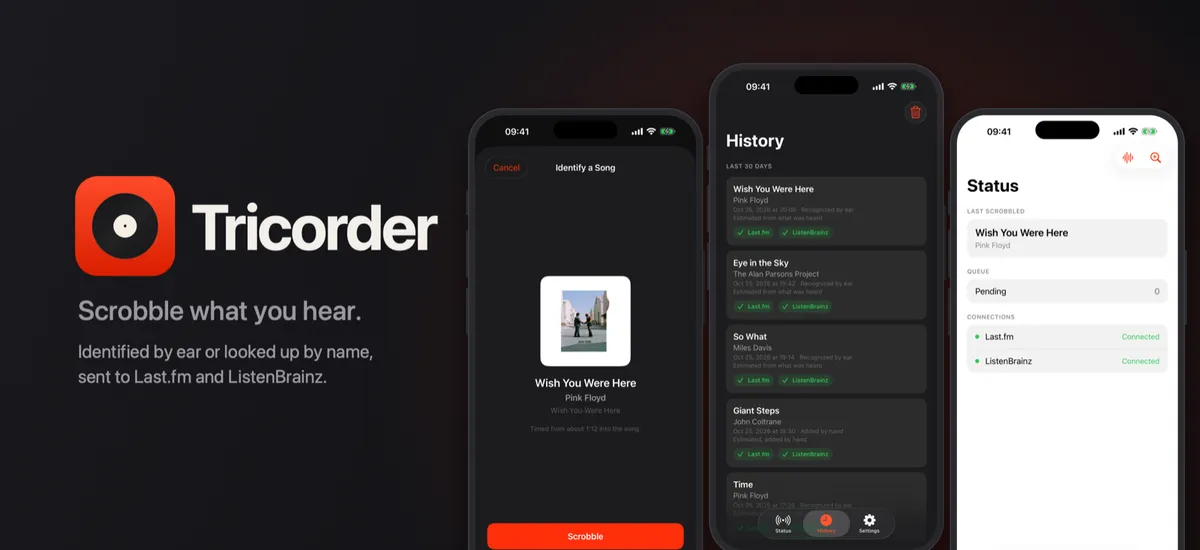
Scrobble what you hear. Tricorder scrobbles the music you point it at, identified by ear or looked up by name, to Last.fm and ListenBrainz.
Download on the App Store · Privacy Policy
The radio in a café, a record at a friend's place, the song in a film. Your music app never saw it play, so it never reached your listening history. Tricorder fills that gap: hold up your phone, see what it heard, and send it.
What it does
Identify by ear
Tap Identify a Song and Tricorder listens to the music around you. It shows the title, artist and album it found, and you decide whether to scrobble it.
Or look it up
Already know the song, or it's no longer playing? Search Apple's music catalog by name and scrobble the result, even if it isn't in your library.
Nothing happens on its own
Every scrobble is one you asked for and confirmed. Tricorder doesn't watch your player, read your library or listen in the background.
Honest history
History lists the last 30 days with each play's status on Last.fm and ListenBrainz, and lets you retry anything that failed. Every start time is labeled for how it was worked out: from how far into the song Tricorder heard you, or estimated when you added it by hand.
Private by design
- No account with us, no analytics, no ads, no tracking.
- The microphone is used only while the Identify screen is open. What's sent for matching is an acoustic fingerprint, not a recording, and no audio is stored.
- Your Last.fm password goes straight to Last.fm and is never stored. Session keys and tokens stay in your Keychain.
- Your play history stays on your device and is sent only to the services you connect.
The privacy policy has the details.
Requirements
- iPhone or iPad.
- A free Last.fm or ListenBrainz account, or both.
- Identifying songs by ear needs a microphone and an internet connection.
Tricorder is free, with no in-app purchases.
Getting started
- Open Settings and connect Last.fm (username and password) or ListenBrainz (your user token from listenbrainz.org/settings), or both.
- On Status, tap Identify a Song to have Tricorder listen to what's playing, or Scrobble a Song to search for it by name.
- Check what it found and tap Scrobble.
Frequently asked questions
The scrobble buttons are greyed out. Connect Last.fm or ListenBrainz in Settings first. Tricorder has nowhere to send a scrobble until you do.
How does Tricorder know when the song started? When it identifies a song by ear, it measures how far into the track you were and counts back. That's the real start only if the song was played from the beginning. A radio edit, a crossfade or a DJ talking over the intro throws it off, so History labels the time as an estimate. Songs added by search are timed as though you started half a track ago.
Why does it want my microphone? Only to identify a song you asked it to, and only while that screen is open. It sends an acoustic fingerprint, not a recording, and stores no audio. Everything else works without it.
I scrobbled something with no signal. It's queued on your device and sent when you're back online, when you open the app, or when you tap Sync Now on Status. Tricorder doesn't run in the background, so a queued scrobble waits until you next open the app.
Last.fm didn't accept an old scrobble. Last.fm only accepts scrobbles from the last two weeks. ListenBrainz has no such limit.
Why does History only show recent plays? History shows the last 30 days. Plays are kept on your device for 90 days, then removed. A play still waiting to be sent is never removed.
Identify a Song says it couldn't reach the service. Check your internet connection and try again.
Tricorder isn't affiliated with Last.fm or ListenBrainz. © 2026 Otávio C.